- Git Introduction
- Git Part 2 Add Commit Branch Delete Revert
- Git Part 3 gitignore
- GitHub Introduction
- Using One GitHub Project on Two Computers
- GitHub Workflow Summary
- Updating a GitHub Project
- GitHub Workflow for a Python Website on Two Computers
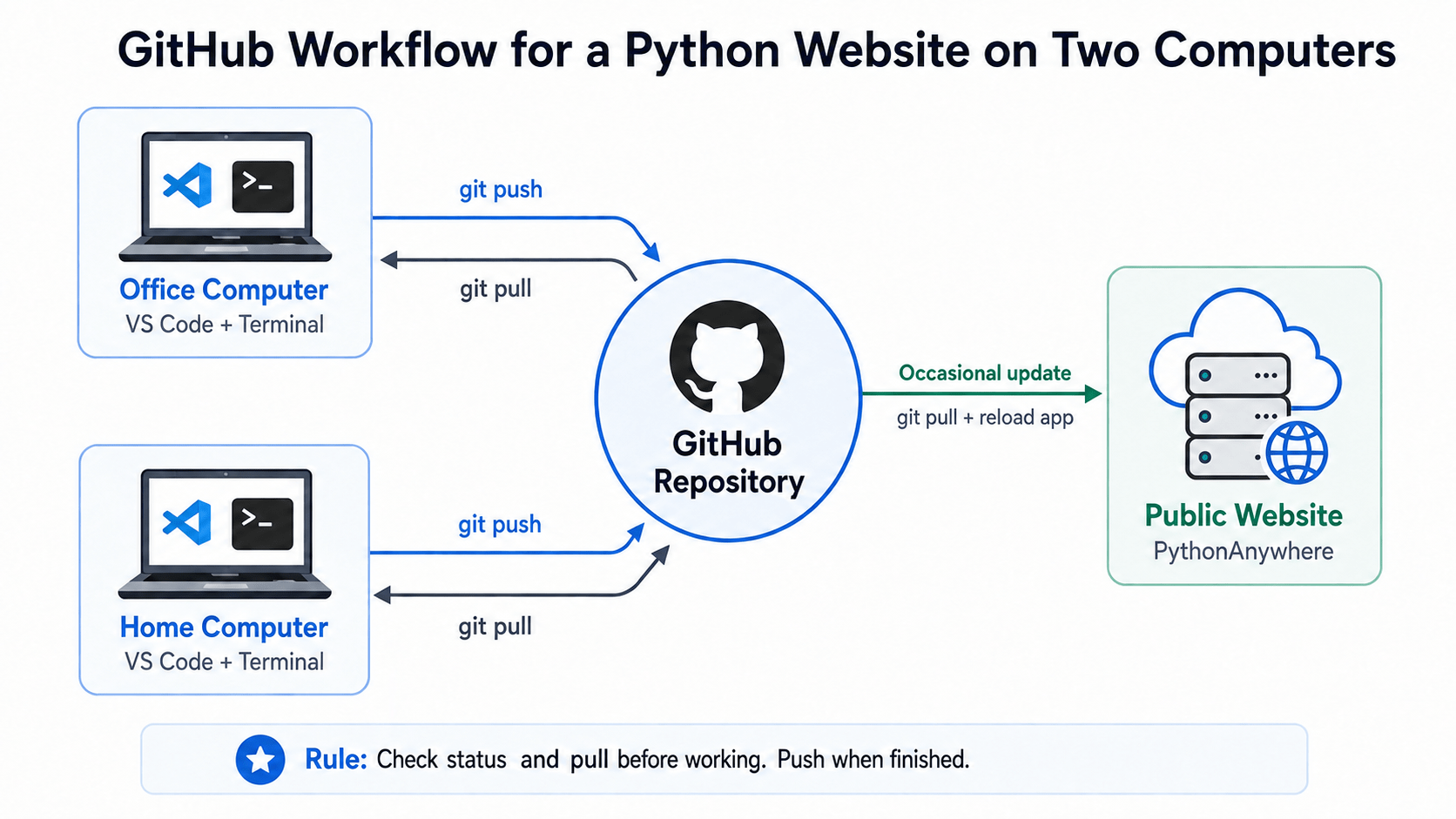
GitHub Workflow for a Python Website on Two Computers
This article describes a simple Git and GitHub workflow for one person who works on the same Python web app project from two different computers.
For example, you might work on a laptop at the office during the day and occasionally continue working on another computer at home. You also have a public version of the website running on PythonAnywhere.
The goal is to keep all three copies organized without manually copying project files from one computer to another.
GitHub becomes the central place where the current version of the project code is stored.
The basic idea is:
- Pull the latest code from GitHub before you begin working.
- Make and test your changes locally.
- Commit your changes. (git status, git add ., git commit -m “new stuff”)
- Push the changes back to GitHub. (git push)
- Occasionally pull the latest version from GitHub onto PythonAnywhere to update the public website.
You do not need to alternate perfectly between the two computers. You might work at the office for several days before working at home again. The workflow is the same no matter which computer you use.
Our Example Setup
For this example, we will assume the following setup:
- Windows 11 is installed on both development computers.
- Visual Studio Code, usually called VS Code, is used to edit the project.
- Git commands are entered in the integrated terminal inside VS Code.
- The application is written in Python using Flask.
- The project uses a SQLite database.
- The project is stored in a GitHub repository.
- There is an Office Computer and a Home Computer.
- The public website is hosted on PythonAnywhere.
- The public website is updated only occasionally when a useful group of changes is ready.
The exact tools are not essential. You could use another editor, another operating system, or even a project that is not a website. The same Git principles still apply.
The Three Main Copies of the Project
There are three important working locations in this example.
- Office Computer — one local development copy.
- Home Computer — another local development copy.
- GitHub — the central shared copy of the source code.
There is also a fourth copy on PythonAnywhere, but it serves a different purpose. It is the public version of the website rather than an everyday development copy.
The Office Computer and Home Computer both communicate with GitHub. They do not normally copy files directly between each other.
The Most Important Rule
Before you start working on the project on either computer, check the current Git status and then pull the latest version from GitHub.
git status
git pull
This is the habit that keeps the workflow simple.
git status tells you whether there are any local changes that have not yet been committed.
git pull retrieves changes from GitHub and brings the local project up to date.
Checking the status first is useful because you do not want to discover forgotten local work only after trying to pull newer changes from GitHub.
The Project Root Folder
Before running Git commands, it helps to understand what the project root folder is.
The project root is the main folder that contains the complete project. It may contain application code, configuration files, documentation, Git files, and other supporting folders.
For example, a Flask project might look something like this:
My_Awesome_Project
│
├── app
│   ├── routes
│   ├── templates
│   └── other application code
│
├── .gitignore
├── requirements.txt
├── flask_app.env
├── README.md
└── other project documentation
In this example, most of the Python and Flask code may be inside the app folder, but app is not the project root.
The project root is:
My_Awesome_ProjectThis distinction is important because Git is tracking the complete project, not only the files inside the app folder.
Files such as .gitignore, environment configuration files, dependency lists, and documentation may all live in the root folder and are part of the overall project structure.
Where Should the Terminal Be?
For a simple and consistent workflow, open the VS Code terminal at the project root.
For example:
PS D:\MyData\Portfolio\SocialEnterprise\My_Awesome_Project>rather than inside a subfolder such as:
PS D:\MyData\Portfolio\SocialEnterprise\My_Awesome_Project\app>Git commands will often still work from a subfolder because Git can search upward and find the repository. However, working from the root folder makes it much clearer what project you are operating on and reduces confusion for beginners.
If your terminal opens inside the app folder, you can move up one level with:
cd ..You can then confirm that you are in the correct project by running:
git statusFor the rest of this article, we will assume that Git commands are being run from the project root folder.
Step 1: Open the Project in VS Code
On whichever computer you are using, open the project folder in Visual Studio Code.
You should be working inside the same Git repository that was previously connected to GitHub.
Next, open the integrated terminal in VS Code.
The terminal should be positioned in the project folder.
Step 2: Check the Current Git Status
Before editing anything, enter:
git statusIf everything is synchronized and there are no unfinished local changes, Git will normally report something similar to:
On branch main
Your branch is up to date with 'origin/main'.

nothing to commit, working tree clean
The important part is:
working tree cleanThis tells you that there are no uncommitted changes sitting on this computer.
Step 3: Pull the Latest Version from GitHub
Now enter:
git pullGit checks GitHub for newer commits and brings them down to the computer you are currently using.
If the other computer was used previously and its work was pushed to GitHub, those changes will now appear on this computer.
If there are no newer changes, Git may display:
Already up to date.That is good. It means you are starting with the current version.
Step 4: Work on the Project
You can now make changes normally in VS Code.
For a Flask website, this could include:
- editing Python files,
- changing Flask routes,
- editing HTML templates,
- changing CSS or Tailwind classes,
- adding features,
- fixing bugs, or
- updating documentation.
Run the application locally and test the changes before committing them.
If you are using a Python virtual environment, activate it as you normally would before running the Flask application.
Step 5: Check What Changed
When you reach a useful stopping point, enter:
git statusGit will show which files have been modified, added, or deleted.
This gives you a chance to review what is about to be committed.
Step 6: Add the Changes
For a simple personal project, you may want to add all changed files:
git add .The period means all changed files in the current project folder and its subfolders.
Step 7: Commit the Changes
Next, create a commit with a short description of the work you completed.
git commit -m "Improve organization location page"Your message should briefly explain what changed.
Other examples might be:
git commit -m "Fix navigation link"
git commit -m "Add resource search"
git commit -m "Update project documentation"
A commit creates a local checkpoint in the project’s history.
Step 8: Push the Commit to GitHub
Now send the new commit to GitHub:
git pushGitHub now contains the latest version of your project code.
If you stop working at this point, the other computer can retrieve these changes the next time you work by running:
git status
git pull
Working on the Other Computer
Suppose you worked at the Office Computer today and pushed your changes to GitHub.
Two days later, you decide to continue the project from the Home Computer.
You do not need to remember exactly which files you changed at the office.
Open the project in VS Code and run:
git status
git pull
The Home Computer now receives the commits that were previously pushed from the Office Computer.
You can work normally and, when finished, use the same sequence:
git status
git add .
git commit -m "Describe the change"
git push
The workflow is identical on both computers.
You Do Not Have to Work at Home
There is no requirement to alternate between computers.
Your week could look like this:
Monday: Office
Tuesday: Office
Wednesday: Office
Thursday: Home
Friday: Office
Saturday: Home
It makes no difference.
Each time you begin working on a computer, the rule remains:
git status
git pull
Each time you finish a useful group of changes:
git status
git add .
git commit -m "Describe the change"
git push
GitHub Is the Central Meeting Point
It helps to think of GitHub as the central meeting point for the project.
The Office Computer does not need to know anything about the Home Computer.
The Home Computer does not need to know anything about the Office Computer.
Both computers only need to communicate with GitHub.
The workflow looks conceptually like this:
Office Computer <----> GitHub <----> Home ComputerA computer pulls changes from GitHub before work begins and pushes completed work back to GitHub afterward.
What About the SQLite Database?
This example uses SQLite, which is convenient because the entire database is stored in a single file.
However, the database should be treated differently from normal source-code files.
Python files, HTML templates, CSS files, documentation, and similar project files work very well with Git because Git is designed to track text-based changes.
A SQLite database is a binary database file. It can change whenever records are added, edited, or deleted.
For that reason, you normally do not want multiple computers independently changing the same SQLite database file and then trying to merge those database changes through Git.
A common approach is to keep the database out of Git and synchronize database changes separately when necessary.
For example, a project’s .gitignore file might contain the database filename:
app.dbThe exact database strategy depends on the project, but the important principle is simple:
Use Git primarily to synchronize the application code. Treat production data separately.
The Public Website Is Different
The public website on PythonAnywhere does not have to be updated every time you make a small commit.
During normal development, you may make many commits while working from the Office Computer and Home Computer.
GitHub keeps track of all of them.
When you decide that the current version is stable and worth publishing, you can update PythonAnywhere.
Updating the Public Website on PythonAnywhere
Log in to PythonAnywhere and open a Bash console.
Move into the directory containing your application if necessary. Use cd and your directory name to change the directory.
Then check the current Git status:
git statusNext, retrieve the current version from GitHub: After typing git pull it will ask you for your username and your password. Enter those.
git pullPythonAnywhere now has the latest committed source code.
Finally, go to the Web section in PythonAnywhere and reload the web application with the green button.
The public website will then use the updated code.
Updating the SQLite Database on PythonAnywhere
Updating the application code and updating the SQLite database are two separate operations.
When you run:
git pullPythonAnywhere retrieves the latest committed source-code files from GitHub. However, if the SQLite database is excluded by .gitignore, Git does not download or replace the database.
This is intentional. The database contains application data and is managed separately from the source code.
If the local SQLite database contains newer data that you want to publish, you must upload that database file to PythonAnywhere separately.
Step 1: Make a Backup First
Before replacing the database on PythonAnywhere, make a backup of both the local database and the existing PythonAnywhere database.
This is especially important because replacing a SQLite database replaces the complete database file, including all of its current records.
Step 2: Identify the Database File Used by the Application
Confirm the exact SQLite database filename used by the Flask application.
For example, the local project might contain a database inside an instance folder:
instance/
    application.db
The instance folder may be excluded from Git, which is why it does not appear in the GitHub repository and is not changed by git pull.
Step 3: Upload the Database to PythonAnywhere
Log in to PythonAnywhere and open the Files section.
Navigate to the folder where the production SQLite database is stored. The Files section has two columnsThis may or may not be an instance folder inside or alongside the application, depending on how the Flask project is configured.
Upload the newer SQLite database file from your computer.
If a database with the same filename already exists, make sure you have backed it up before replacing it.
Step 4: Confirm the Database Path
The Flask application must point to the database file you just uploaded.
For example, if the application expects:
/home/username/project/instance/application.dbthen the uploaded database must be placed at that location unless the application’s configuration is changed.
Uploading the database to a different folder will not automatically cause Flask to use it.
Step 5: Reload the PythonAnywhere Web App
After updating the code or replacing the database, open the Web section in PythonAnywhere and reload the web application.
This restarts the Flask application so that the public website uses the current code and database.
Code and Data Follow Different Paths
The deployment workflow therefore has two separate paths:
APPLICATION CODE

Development Computer
        |
        | git push
        v
      GitHub
        |
        | git pull
        v
 PythonAnywhere


SQLITE DATABASE

Development Computer
        |
        | upload database file
        v
 PythonAnywhere
GitHub is the central synchronization point for the source code, but it is not being used to synchronize the SQLite database.
The Everyday Workflow
For normal development work, the entire routine can be summarized with just a few Git commands.
Before working:
git status
git pull
After making and testing changes:
git status
git add .
git commit -m "Describe the change"
git push
Then continue working from whichever computer is convenient next time.
The Occasional Deployment Workflow
When a group of changes is ready for the public website:
Office or Home
      |
      | git push
      v
    GitHub
      |
      | git pull
      v
PythonAnywhere
      |
      v
Reload Web App
This separates everyday development from deployment.
GitHub is used constantly. PythonAnywhere only needs attention when you actually want to publish a new version.
A Simple Habit That Prevents Many Problems
The most useful habit in this entire workflow is also the simplest:
git status
git pull
Run those commands before you start working.
Then, when you have finished a useful piece of work:
git status
git add .
git commit -m "Describe the change"
git push
Once this becomes routine, working on the same project from two different computers becomes surprisingly straightforward.
Workflow Diagram
The diagram above summarizes the complete setup. The Office Computer and Home Computer both pull from and push to the central GitHub repository. When a stable version is ready for publication, the latest code is pulled from GitHub onto PythonAnywhere and the public web application is reloaded.
Insert the “GitHub Workflow for a Python Website on Two Computers” diagram here.